
26 Dec 2025

How to create a ticket or reply a ticket in createWebAI.Com?
To create a ticket or reply for an exiting ticket, you need process follow some steps, includes:
1. First step: You need login into createWebAI.Com
You need to follow the instructions in SECTION 3 of the following article:
If you don't have an account in this site, so you can create a free account like SECTION 1 in above article.
2. Second step: Open the profile settings window
In Dashboad window, you click on Avatar Image (1) => You click on Support Tickets (5) option like Illustration 1 bellows:
Illustration 1: User Dashboard Interface
3. How to create a new ticket in createWebAI.com?
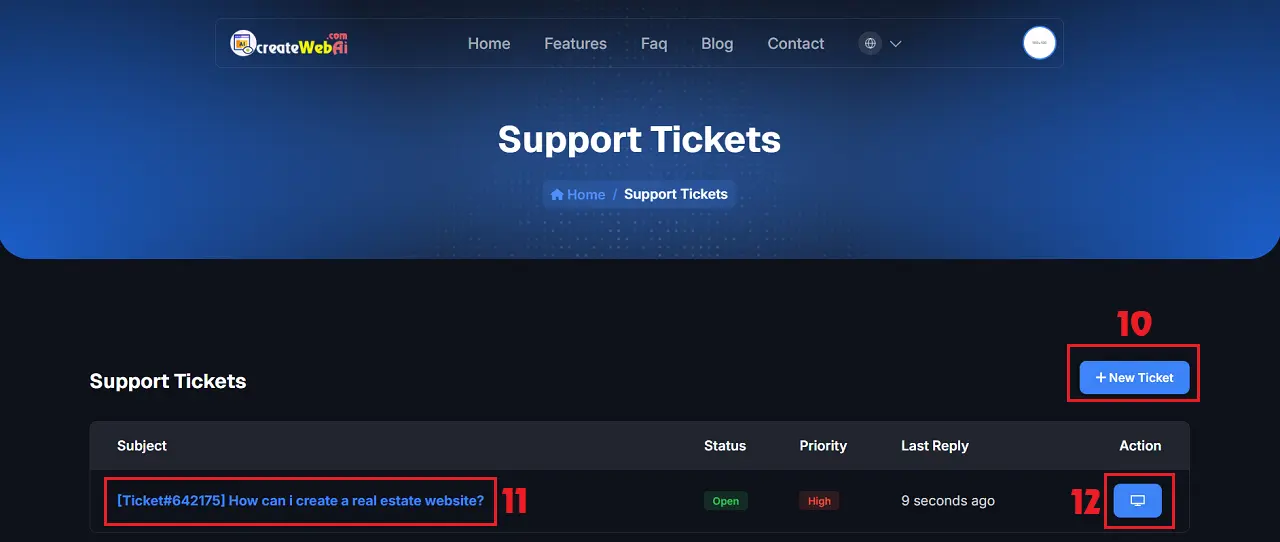
In Support Tickets List window like Illustration 2 bellows, you click on + New Ticket (10) button to create a new ticket.
Illustration 2: Support Tickets List
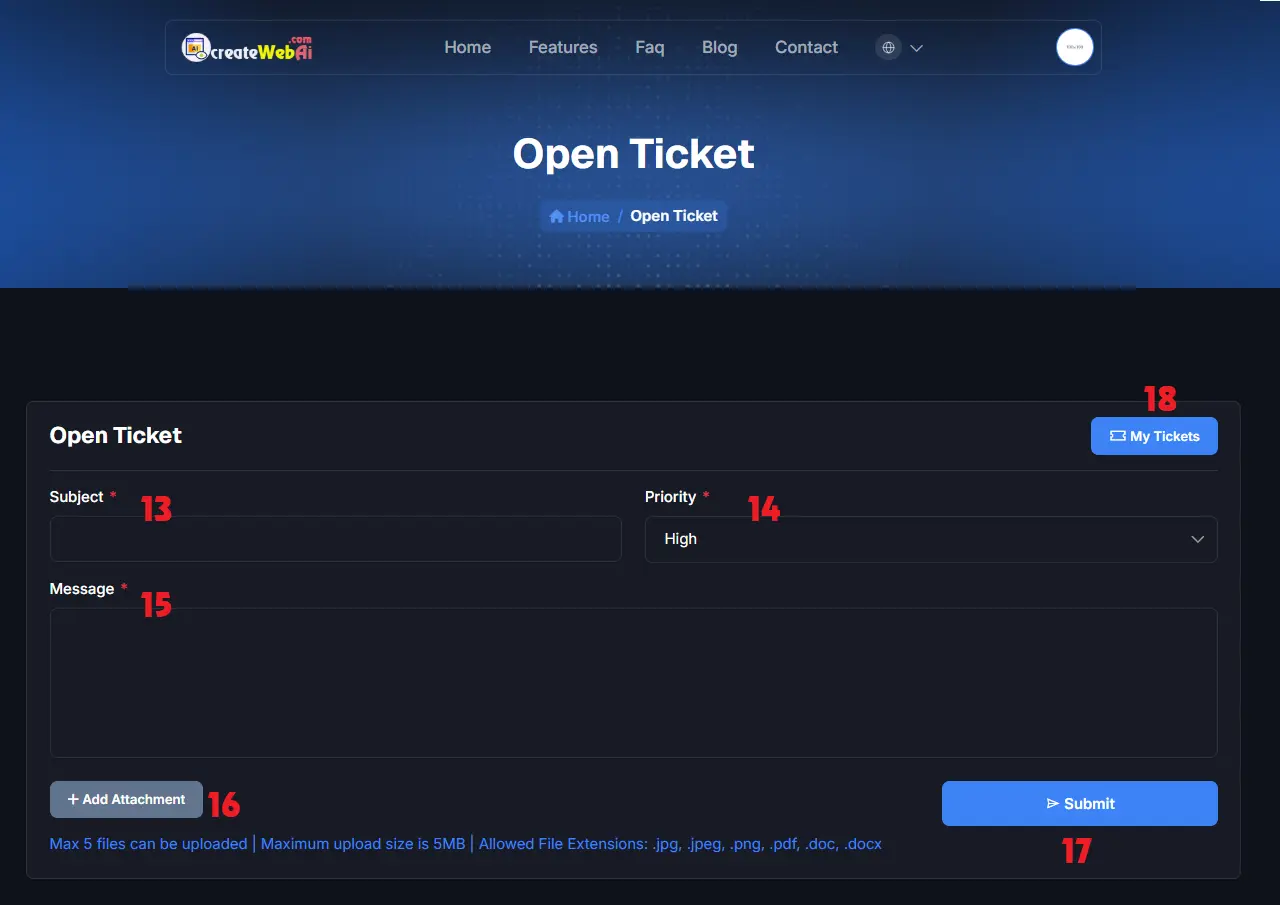
Illustration 3: Create a new ticket
* Notes:
+ Subject (13) box: You need input your question there.+ Priority (14) box: You need choose the suitable for your question.+ Message(15) box: You need input your question detail there.+ Add Attachment (16) button: If you have a document that's detail for your question so you need click on this button to attach it to your ticket.+ Cells marked with a red asterisk (*) are mandatory.+ My Tickets (18): Click on this button to step to Support Tickets List.=> Final, you click on SUBMIT (17) button to send it for Admin and wait their answer.
4. How to reply an exiting ticket?
To reply an exiting ticket, in support tickets list window like Illustration 2 above, you need click on ticket's name (11) or action (12) icon that's suitable with that ticket.
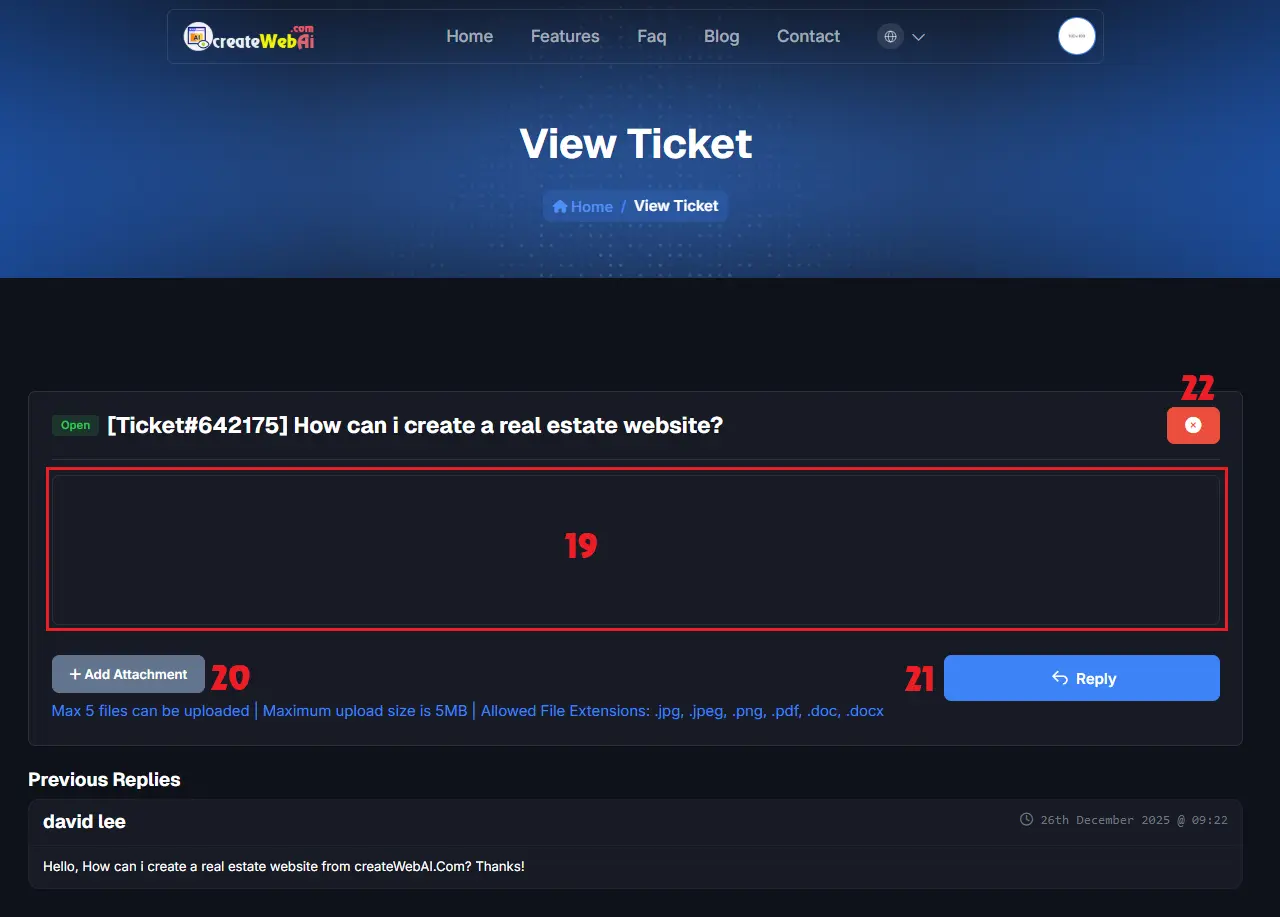
Illustration 4: Reply an exiting ticket
* Notes:
+ Red 19th box: You need input your message that you want to reply to admin.+ Add Attachment (20) button: If you have a document that's detail for your message that you want to reply to admin so you need click on this button to attach it to your ticket.+ 22th icon: Click on it to delete that ticket.=> Final, you click on Reply (21) button to send it to Admin.