24 Dec 2025

How to create a free account and log in to createWebAI.Com?
ARTICLE CONTENTS
+ How to create a free account in createWebAI.Com?
+ Explore the user interface of createWebAI.com
+ How can I login into createWebAI.Com?
+ How can I Logout of createWebAI.Com?
DETAILED CONTENT
1. How to create a free account in createWebAI.Com?
To create a free account in createWebAI.Com, you need process follows some steps:
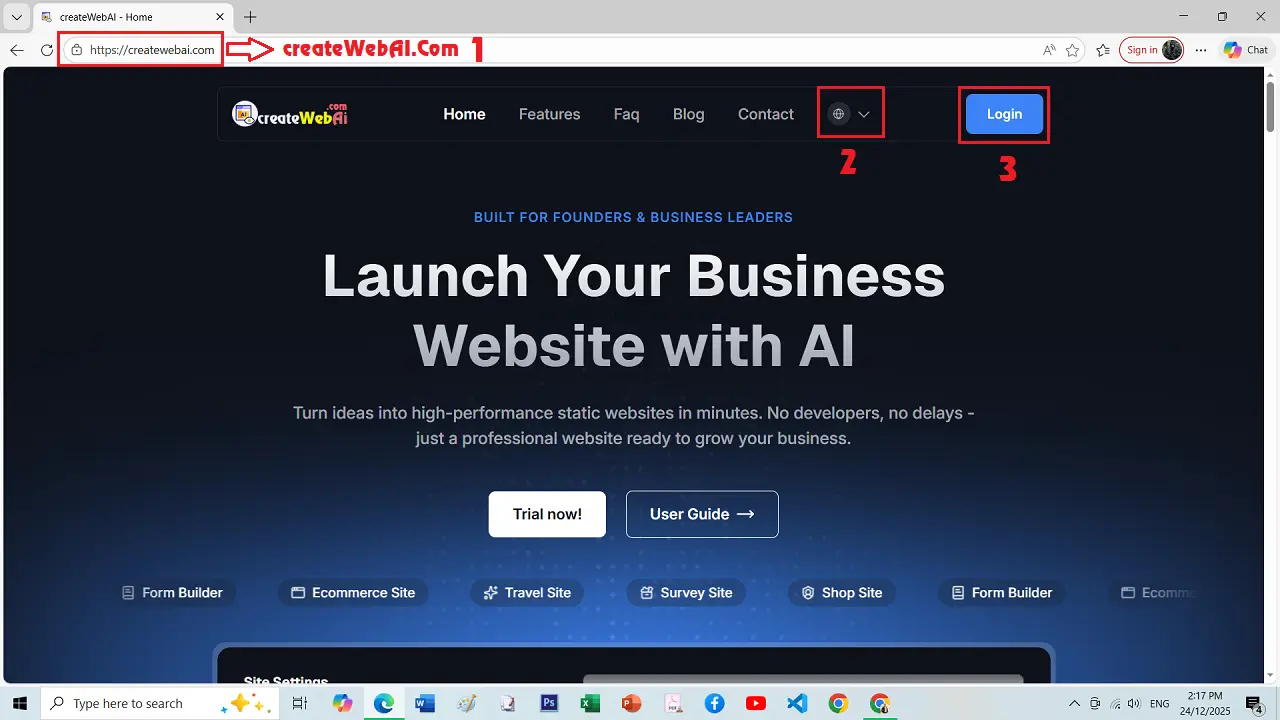
1.1. First step: You need open createWebAI.Com (1) site => Then you click on LOGIN (3) button like illustration 1 bellows.
illustration 1: Go to createWebAi.Com site from Browser
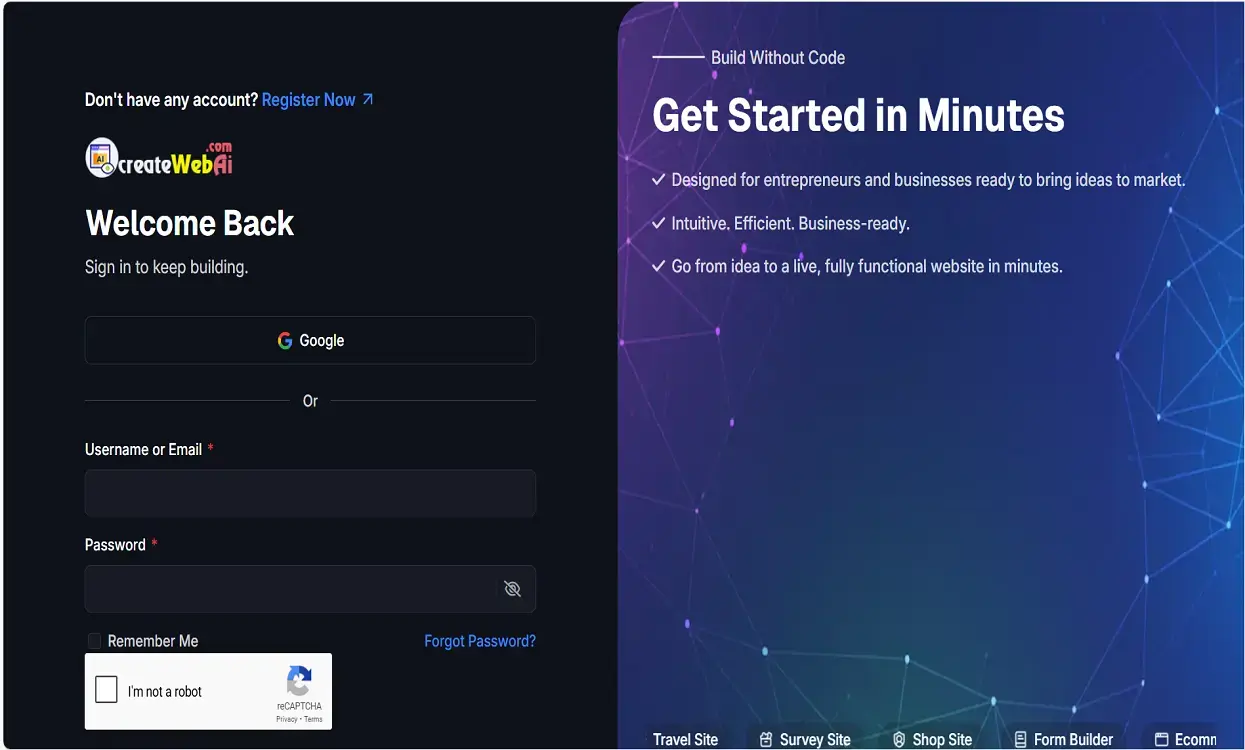
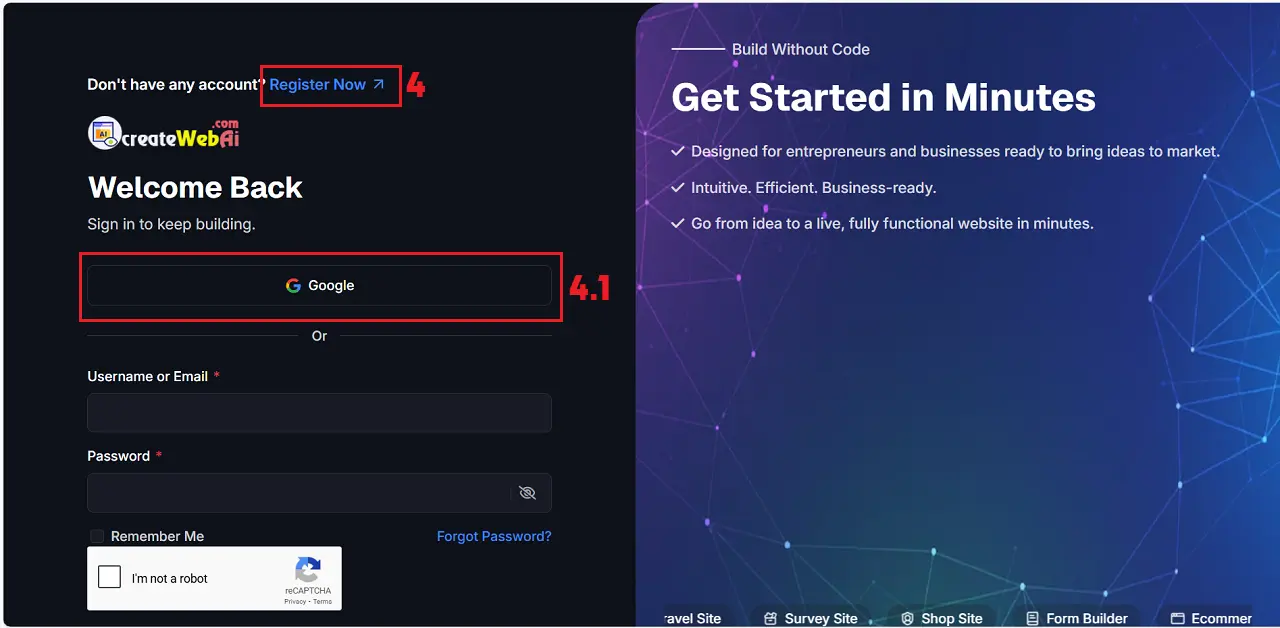
1.2. Second step: In Login window, you click on Register Now (4) => in Register window like illustration 3 bellows, you input all things for your account in that window.
illustration 2: Login interface
* Note: You can click on Google (4.1) option to create your account from your gmail.
illustration 3: Register Interface
*Note:
- + Password (8) box and Confirm Password (9) box: You need input your password here.
- + I'm not a robot (10): You need tick this option.
- + I agree with Pivacy Policy, Term of Service, Security Policy: You need tick this option.
- => When you input all things => So you click on SUBMIT (11) button to continues.
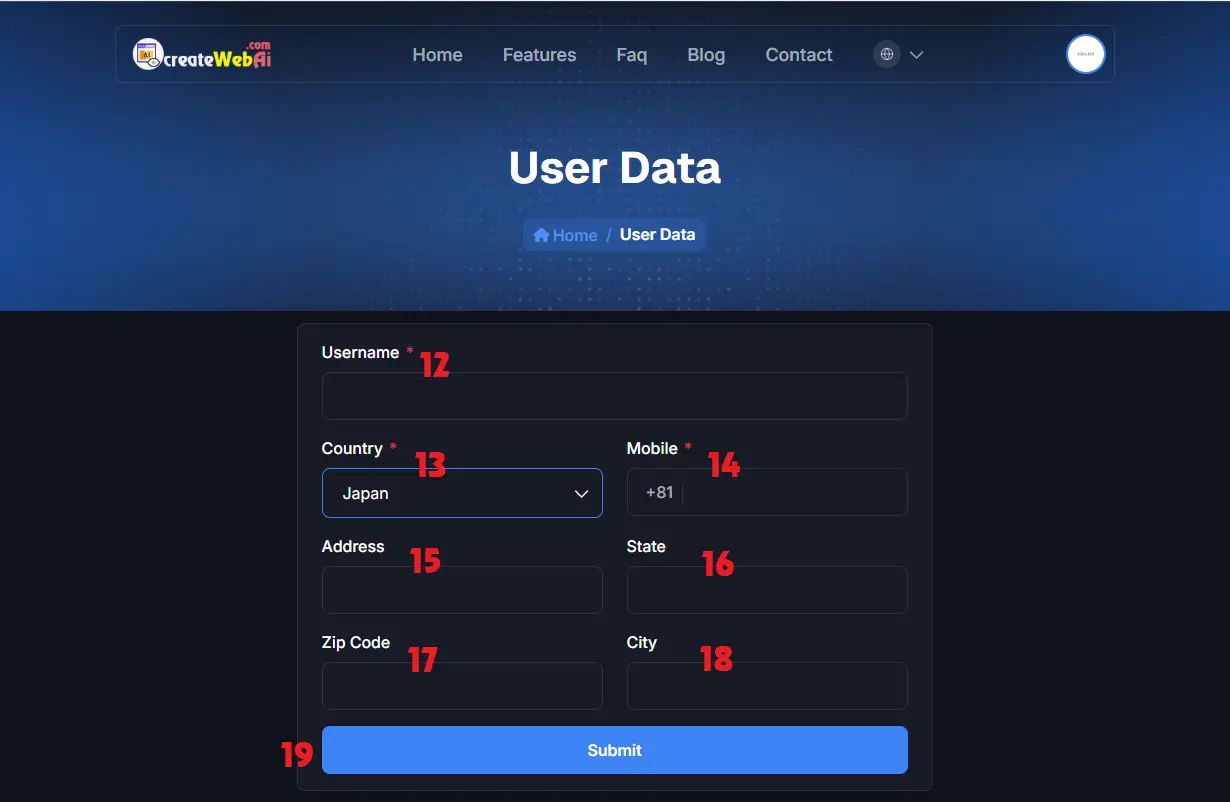
1.3. Third step: In User Data window like illustration 4 bellows, you input all your account information there => Final, you click on SUBMIT (19) button to finish.
illustration 4: User Data Interface
* Note:
+ Username (12) box: You input your account name here. It only accepts lowercase characters and digits. It does not accept special characters such as: @ ! # $... and spaces.+ Cells marked with a red asterisk (*) are mandatory.=> When you finish this step so your account has created in createWebAI.Com!
2. Explore the user interface of createWebAI.com
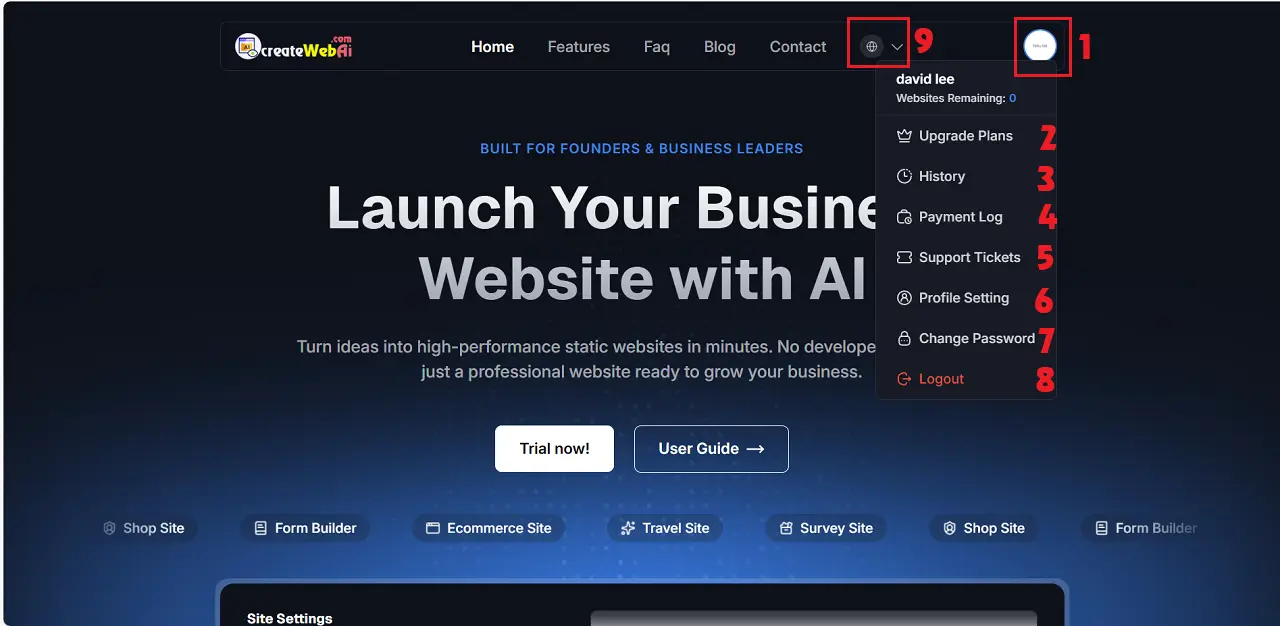
illustration 4: User Dashboard Interface
When you click on Avatar image (1) like illustration 4 above, so you can see the drop down menu, includes:
+ Upgrade Plans (2): Click on this option to update your plan that helps you to be used all function of this site.+ History (3): Click on this option to show all your sites that you had schedule to generate them.+ Payment Log (4): Click on this option to show your payment history.+ Support Tickets (5): Click here to create or reply the tickets that you want Admin to resolve for you.+ Profile Settings (6): CLick on this option to change your account information.+ Change Password (7): Click here to change your account password.+ Logout (8): Click here to Logout of createWebAI.Com.+ Languagies Icon (9): Click on this icon to change your language.
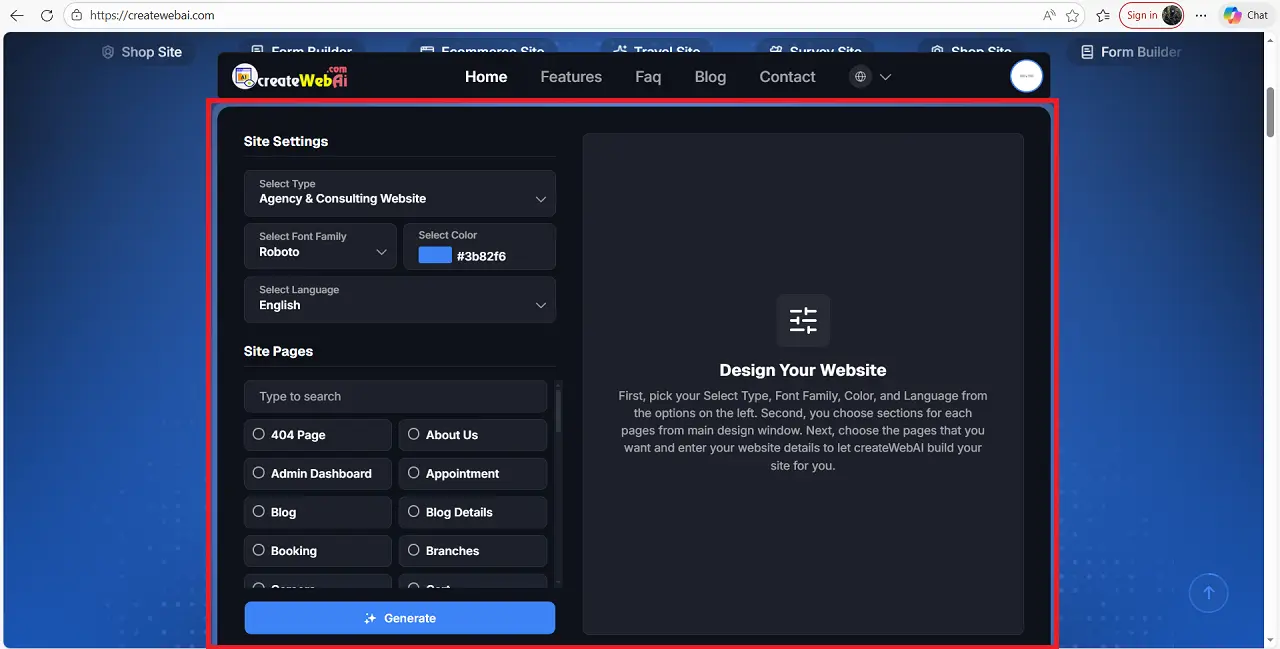
illustration 5: Design Website Via AI Interface
*Note: On the homepage, scroll down and you will see the AI-powered website design section of createWebAI.Com, as shown in illustration 5 above.
3. How can I login into createWebAI.Com?
To login into createWebAI.Com, you need process like 1.1 and 1.2 above. In Login window, You need input your account information here then you can login into createWebAI.Com.
4. How can I Logout of createWebAI.Com?
To logout of createWebAI.Com, you click on Avatar Image (1) like illustration 4 above => then you click on Logout (8) option.